Quickly Enable / Disable Revit Plugins with DiRoots App Manager
Jun 07, 2023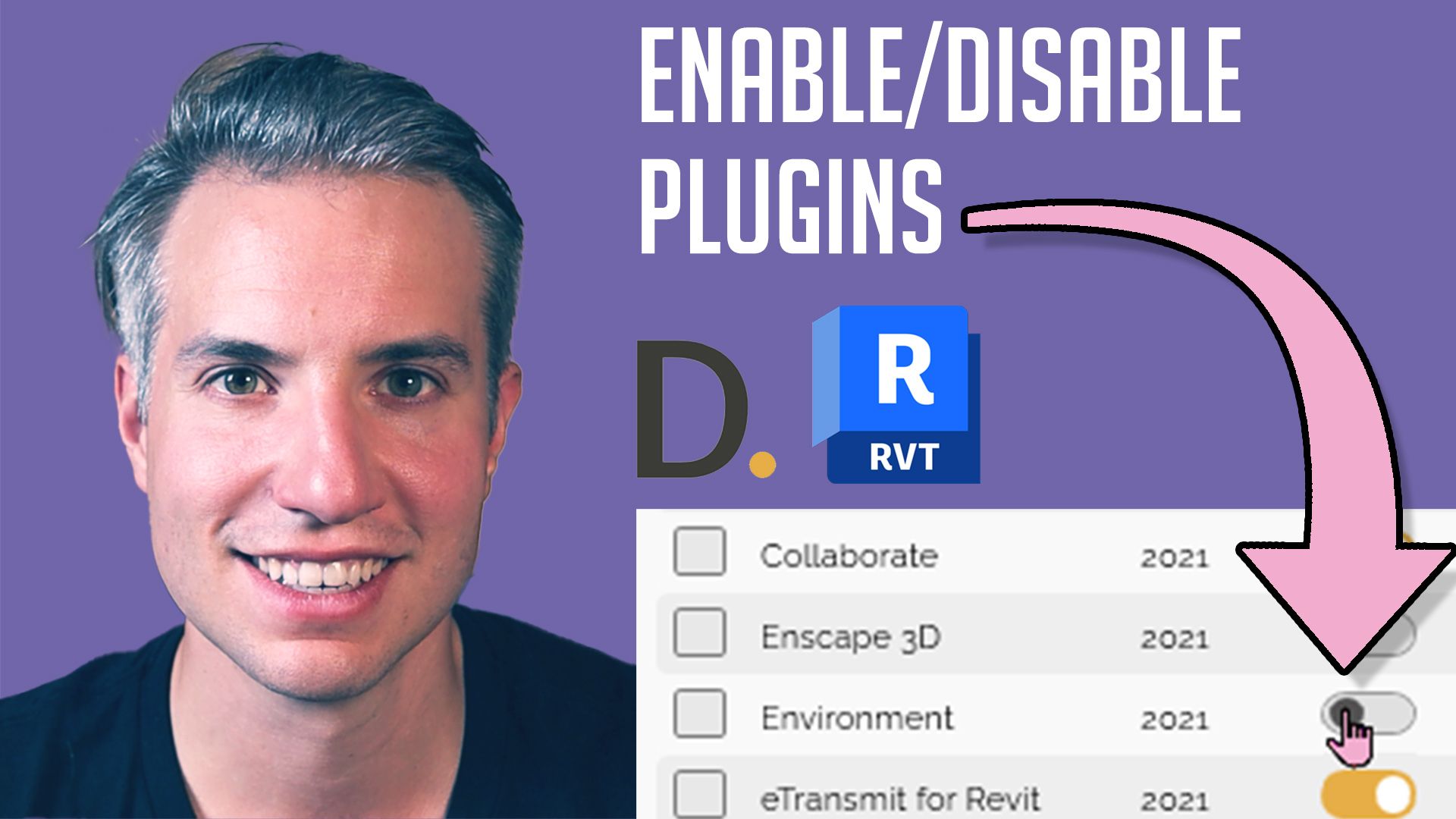
Having too many plugins can cause issues, including:
1- Bugs and conflicts between the plugins.
2- Longer Revit load time.
3- Too many tabs in the ribbon.
Instead of uninstalling the plugins, you can temporarily disable them. DiRoots created a great free app for this. It is called the DiRoots App Manager.
Click here to download the app.
Once the app is installed, run it by selecting “Run as administrator” in Windows. This is necessary because some plugins are installed on the “ProgramData” folder, which can only be accessed by admins.

At the top of the app, click on “Addin Manager”.

You will see a list of every single plugin installed on all versions of Revit.

To enable and disable plugins, click on the yellow icon:

You can create multiple profiles. For example, a Lite profile that disables most plugins or a Complete profile that includes most of them.

Thanks to DiRoots for creating this great app for free! If you like DiRoots tools, you can make a donation.
Enter your details below to get this free guide.